AI accessories photography
Small details.
A whole new setting.
Product photography for bags, hats, and shoes.
Give an accessory a place in a story. Start with your product photo in ProductAI, then explore a styled tabletop, an outdoor scene, or a street-level view for your store and social imagery.


Bags / Styled tabletop
Give your bag
a place in the day.
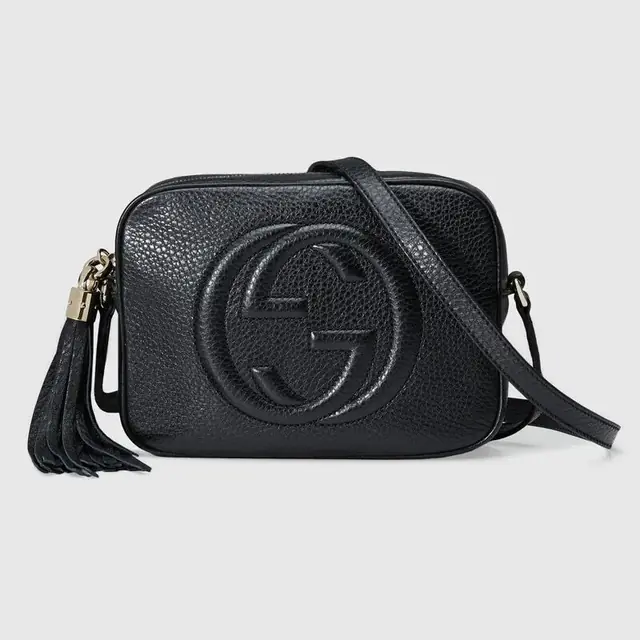
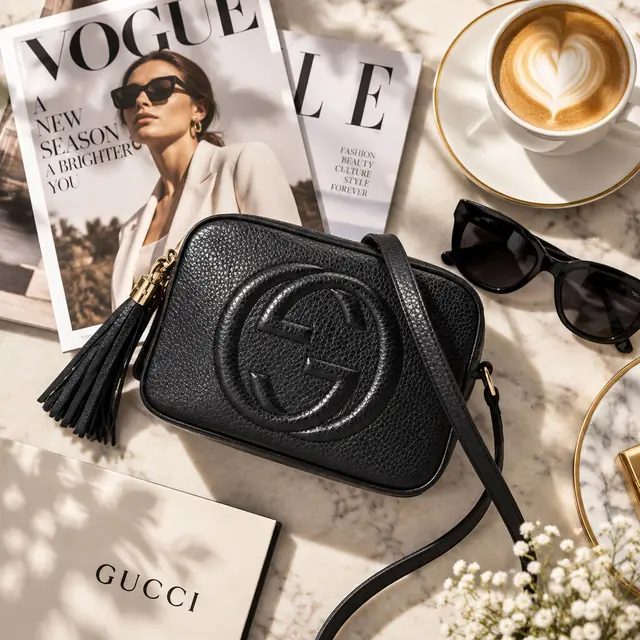
A black crossbody bag moves from a plain background to a tabletop with coffee, sunglasses, and a magazine. This direction can help build a visual story around an everyday accessory.
Start with the strap and hardware clearly visible. When reviewing the result, follow the outline of the bag and compare stitching, buckles, and material texture with the original.
Hats / Outdoor context
From a plain backdrop
to the open trail.
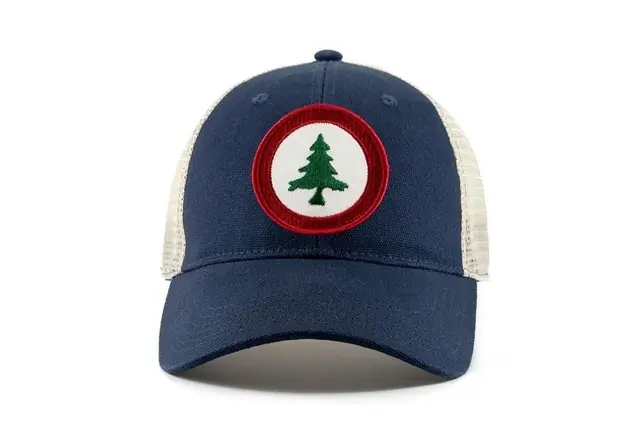
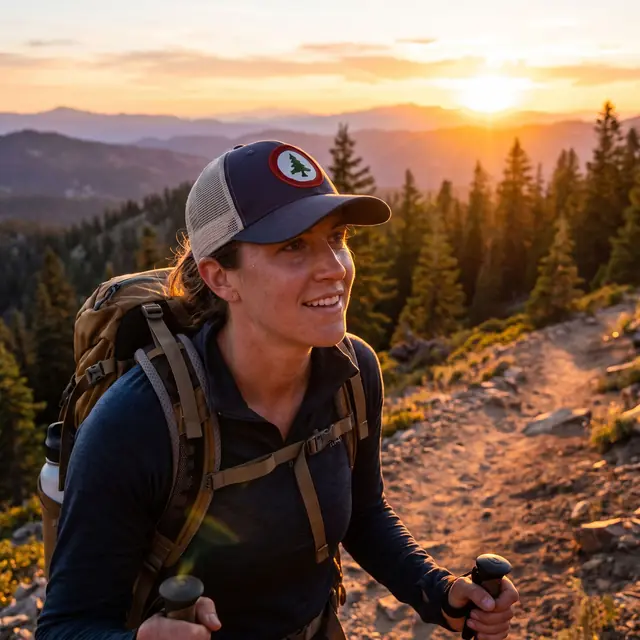
A navy cap becomes part of a hiking scene. Explore this kind of setting for an outdoor collection or a social post where atmosphere helps tell the story.
Photograph the brim, crown, and patch clearly. Check their proportions and any visible lettering in the generated image; a scene with a person does not verify real-world fit.
Shoes / Street setting
A different angle.
A different atmosphere.
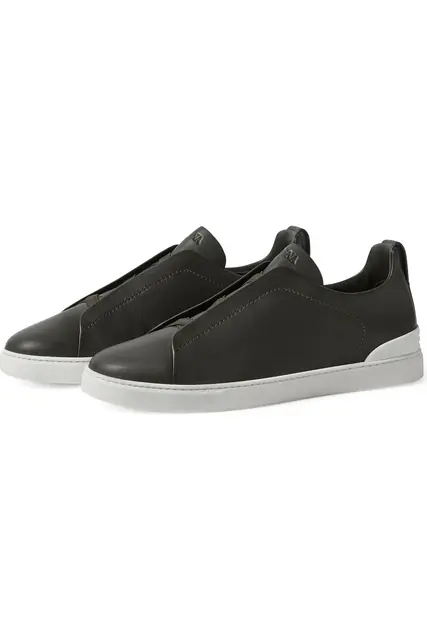
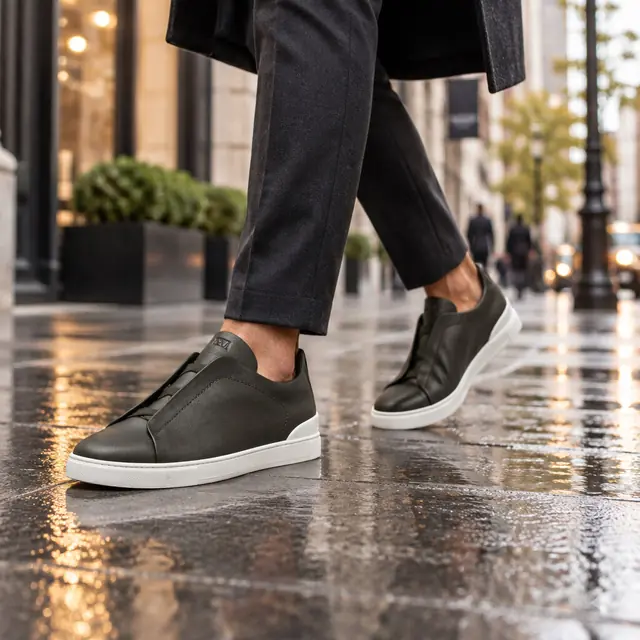
A pair of black sneakers on white becomes a street scene with wet pavement. The change in viewpoint and surrounding light creates a new visual direction for footwear imagery.
Keep the sole, toe shape, and lacing visible in your input. Compare both shoes in the result, especially seams and sole thickness. Use original photos to show exact construction and condition.
Prepare your accessory photo
Start with the details
that make it yours.
A simple studio direction keeps attention on the product. A lifestyle direction adds context. Prepare a clear source photo before exploring either.
Arrange the whole product.
Keep handles, straps, brims, and soles inside the frame. Separate overlapping parts so their shape is easy to see.
Show the material.
Use soft, even light to show leather grain, fabric weave, stitching, and hardware. Avoid glare that hides the finish or a logo.
Describe a setting.
Choose a suggested scene or describe your own. Try a neutral studio backdrop for a focused composition, or a tabletop scene with space around the product. Review the result before refining your direction.
Accessories photography questions
Before you begin.
Explore all before & after examples or see our clothing photography guide.
What accessories can I start with?
The examples here show a bag, a cap, and sneakers. Start with a clear photo of your own product. Results vary with the source photo, scene, and product details.
Can I create both studio and lifestyle images?
Yes. Choose or describe a simple studio setting or a scene around the product. The examples above illustrate lifestyle directions; the dress example shows a neutral studio presentation.
Will logos and hardware stay exactly the same?
AI can alter text, logos, stitching, and small parts. Compare each result with the source at full size. Keep original detail photos wherever a shopper needs exact information.
Where do I create the images?
Download ProductAI for iOS or Android below. Add your product photo in the app and choose a direction. Current pricing and credit requirements are shown in the app.
ProductAI for iOS & Android
Your accessory.
Your next visual story.
Bring a clear photo. Find a setting that fits your collection.